Game archives
How to Get a PGN from Chess.com
On the Chess.com website, open a game, choose Share below the Analysis tab, select PGN and download the file. You can also export selected games from Game History. To explore the opening in ChessHunter, open Playground, choose Import PGN and load one game.

Your preparation checklist
- Use the PGN tab in the Share window to download a single game.
- Use Game History to select and download several games.
- A PGN contains moves; a FEN describes a single position.
- Check the players and date before analyzing an opponent’s game.
Download one Chess.com game as PGN
Start with the game you want to study. The steps below apply to the Chess.com website; mobile menus differ.
- Open the game and its Analysis tab.
- Choose Share beneath the analysis panel.
- Select the PGN tab in the sharing window.
- Download the PGN file. Enable timestamps if you want to retain clock information.
For a plain game export, keep analysis extras off. If you need your saved notes, check the annotation options before downloading. Chess.com’s help page explains the available export settings.
Download several games from Game History
Open your Game History or a player’s public history, select the games you need and use the Download icon. Choose a relevant sample by date and time control before drawing conclusions about an opening. A bulk file can contain several games; use one game at a time for the Playground workflow below.
Import the PGN into ChessHunter Playground
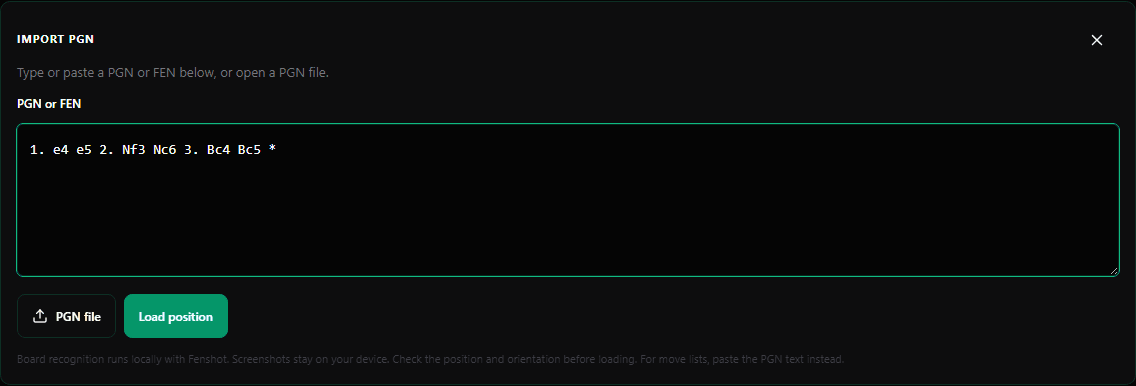
Open the free Playground and choose Import PGN. Select PGN file or paste the game text, then choose Load position. Replay moves to reach the opening position you want to investigate. Use the master database to explore continuations and Stockfish to examine candidate moves.
Verify that the loaded moves match the original game. An engine evaluation helps you analyze a position; it does not tell you how often an opponent will choose it.
If your PGN will not import
Paste the game notation rather than its web address. Keep move numbers, moves and the game result together. If a downloaded file contains multiple games, select a single game first. For a position without a game history, use FEN instead of treating it as PGN.
Frequently asked questions
Can I download PGN on the Chess.com mobile app?
Yes. On Android, open the game, tap More and choose Export PGN. On iOS, open Game Analysis, then Options and Share. Follow Chess.com’s current help instructions if your app menus differ.
Can I analyze a Chess.com PGN in ChessHunter?
Yes. Open Playground, choose Import PGN and load or paste one game. You can replay the moves, explore the opening database and analyze positions with Stockfish.
Is a PGN the same as a FEN?
No. PGN records a game’s moves and can include player details and annotations. FEN describes one board position, including whose turn it is.
Sources & further reading
Chess.com export steps were checked against its official help article on October 6, 2026. Interface labels may change.